
Download Disable Key – disable key, keyboard utility, PC tool, gaming keyboard, productivity tool, disable Windows key, disable Escape key, disable Ctrl key
Overview
Disable Key is a lightweight utility application designed for Windows users seeking greater control over their keyboard input. The app enables users to disable specific keys on their keyboard, addressing common issues such as accidental key presses during gaming or typing sessions. By allowing users to block keys like the Windows key, Escape, or Ctrl, the software enhances focus and reduces interruptions, particularly in high-stakes environments such as competitive gaming or intensive data entry tasks.
The target audience includes PC gamers, remote workers, and productivity-focused individuals who value precision and uninterrupted workflow. The application is especially useful for users who frequently encounter unintended shortcuts or system interruptions due to accidental key presses. For example, a gamer playing a fast-paced game may benefit from disabling the Windows key to prevent the game from minimizing unexpectedly. Similarly, a writer or programmer can use the tool to disable the Ctrl key when working on critical documents to avoid accidental saves or undo actions.
Developed by SoftPas, the app reflects a commitment to minimalism and functionality. Although the developer did not provide additional technical details about the company or its broader product portfolio, the application’s straightforward purpose and clean design suggest a focus on user-centric utility. In the broader software ecosystem, Disable Key fills a niche need for keyboard customization tools that are both effective and accessible without requiring advanced technical knowledge.
Key Features & Functionality
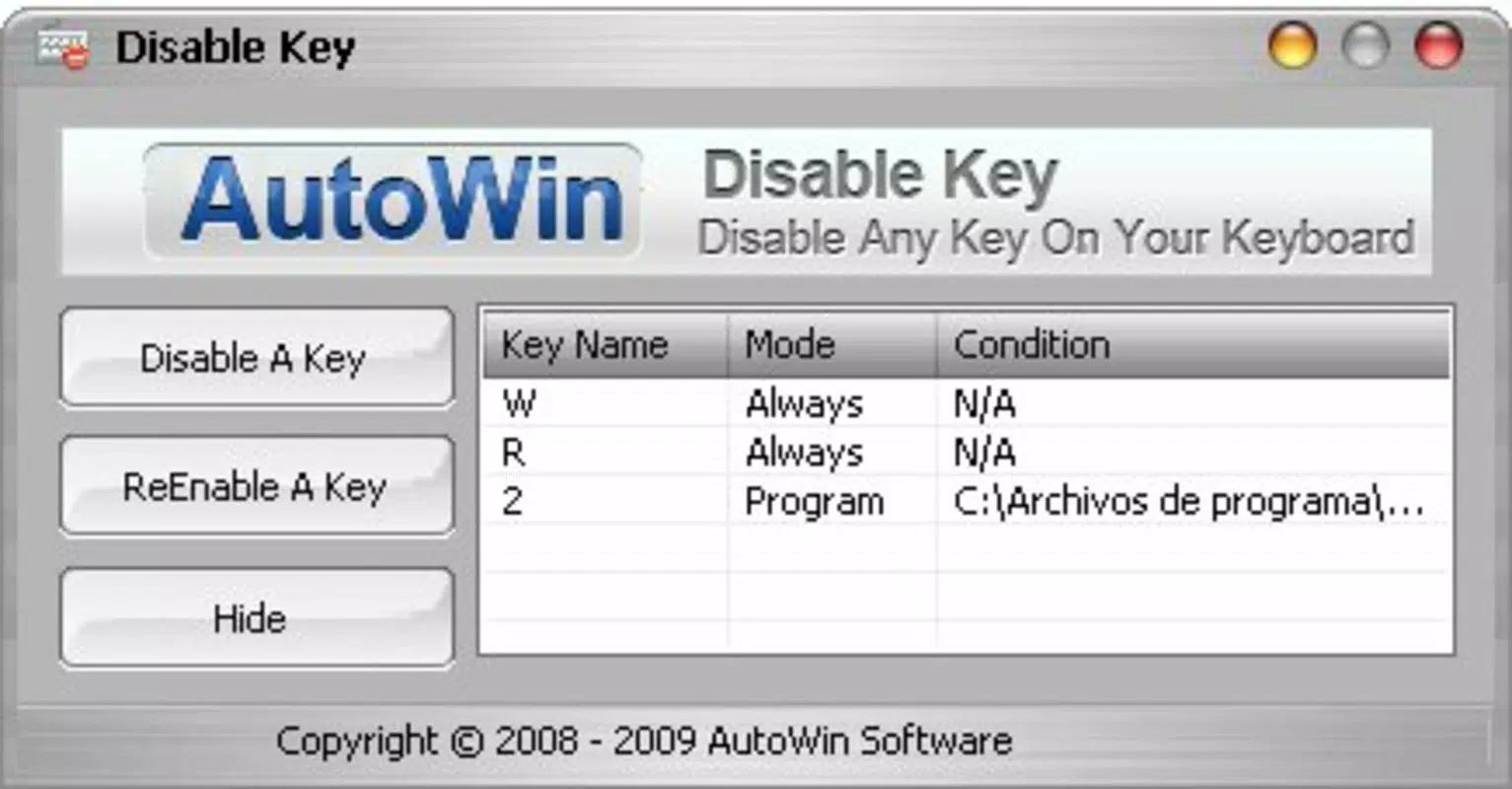
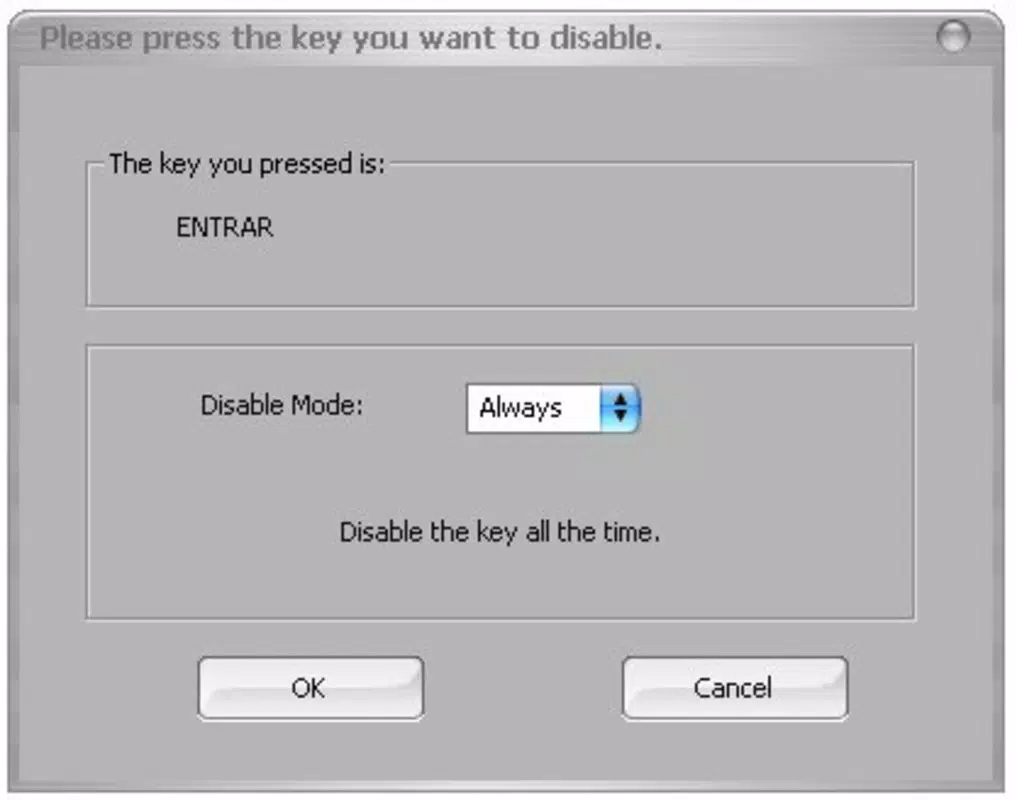
- Key Disabling Control – Users can disable any physical key on the keyboard by selecting it from a visual interface, including the Windows key, Escape, Ctrl, Alt, and others.
- Program-Based Activation – The app allows users to configure automatic key disabling when specific programs are running, ideal for gaming or application-specific workflows.
- Manual Toggle Option – Users can enable or disable the key-blocking function at any time through a simple on/off switch within the interface.
- Low System Resource Usage – The application operates efficiently with minimal impact on system performance, making it suitable for use on older or low-spec devices.
- Customizable Key Mapping – The tool supports user-defined key assignments, allowing for tailored configurations based on individual preferences.
For instance, a gamer can set the app to automatically disable the Windows key whenever a game launches, preventing accidental minimization. A content creator might disable the Ctrl key while editing a document to avoid unintended Ctrl+Z actions. The interface is designed to be intuitive, with a clear list of available keys and real-time feedback on active settings. This level of customization ensures that users can adapt the tool to their specific workflows without complexity.
Interface, UX & Performance
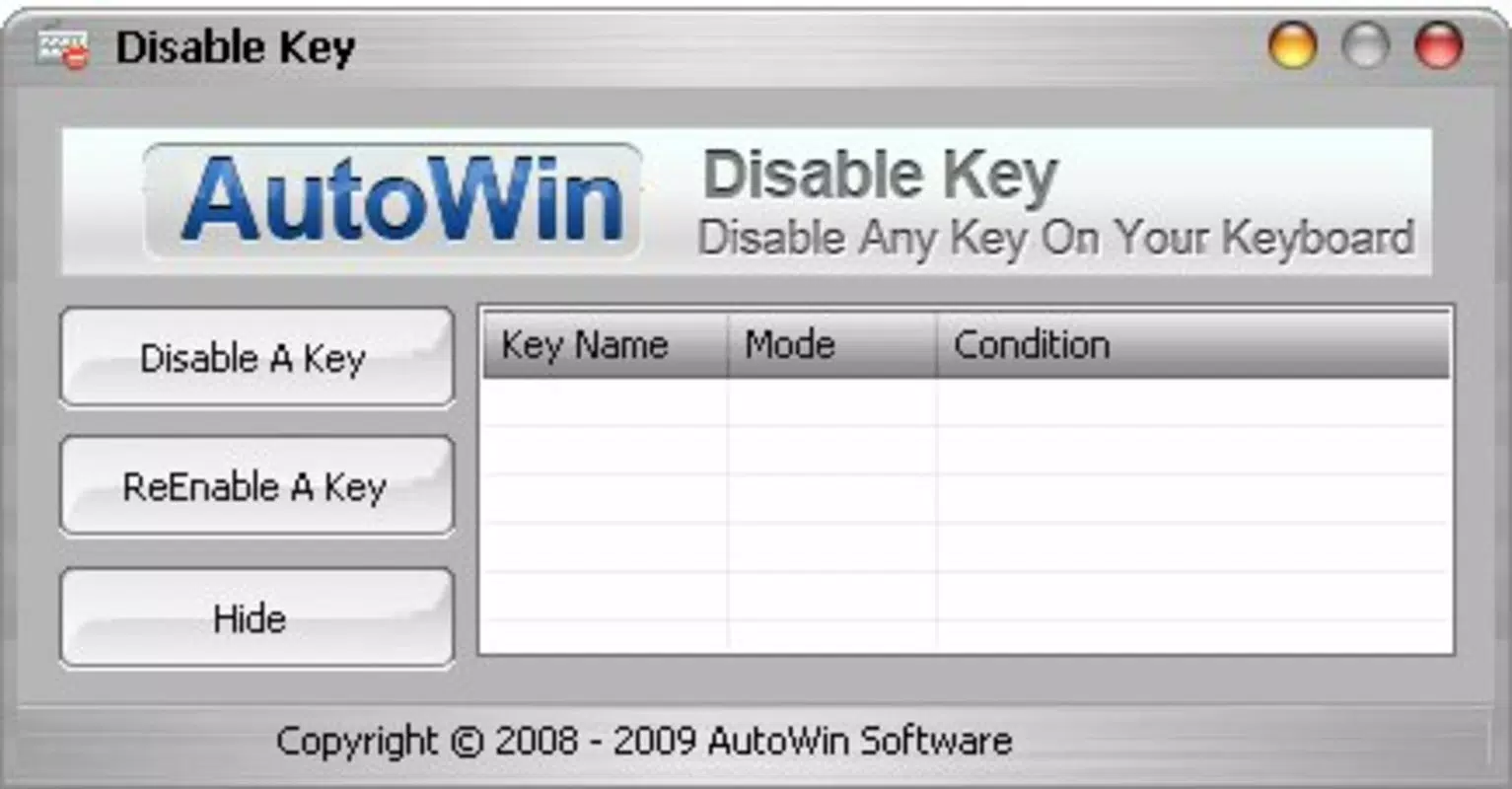
Disable Key features a clean, minimalist interface that prioritizes usability and clarity. The main window displays a visual representation of the keyboard layout, with each key labeled and color-coded to indicate its current status—active, disabled, or pending. Navigation is straightforward, with a single-click selection process to disable any key. The layout is optimized for quick access, allowing users to make changes without navigating through multiple menus.
Interaction is smooth and responsive, with immediate feedback when a key is disabled or re-enabled. The application maintains stability during extended use, and although the developer did not list formal performance metrics, the small file size of 1.2 MB suggests a lightweight footprint. The app does not consume significant CPU or memory resources, ensuring consistent performance across different device categories, including entry-level and mid-range Windows systems.
Responsiveness is maintained even when multiple keys are disabled simultaneously. The application runs in the background without interfering with other programs, preserving system efficiency. Users report no noticeable lag or crashes during typical usage. The lack of complex setup steps enhances the overall user experience, making the tool accessible to both novice and experienced users alike.
Platform Compatibility & Technical Requirements
Disable Key is designed exclusively for the Windows platform. It is compatible with all major versions of Windows, though the developer did not specify minimum OS requirements. The application has a file size of 1.2 MB, making it suitable for devices with limited storage capacity. The current version is 1.0.0, and the app is available at no cost to users.
Although the developer did not list formal compatibility details beyond the platform, the lightweight nature of the application suggests broad compatibility across modern Windows systems. Users on older versions of Windows may still be able to install and run the app, but specific requirements were not disclosed. No additional software dependencies or hardware specifications were mentioned, indicating that the tool is self-contained and easy to deploy.
Pros and Cons
Pros
- Simple, intuitive interface suitable for users of all experience levels.
- Free to download and use with no hidden costs.
- Lightweight design with minimal system resource consumption.
- Supports program-specific key disabling for targeted functionality.
- Effective at preventing accidental key presses during gaming or typing.
Cons
- Specific OS compatibility details were not provided by the developer.
- No built-in update notification system was mentioned.
- Customization options are limited to key disabling, with no advanced scripting or automation features.
- Does not offer a portable version for USB-based use.
- Limited visibility into system-level changes due to lack of logging or diagnostics.
FAQ
Is Disable Key safe to install on my PC?
Yes, the application is designed to operate safely within the Windows environment. It does not modify system files or install unwanted software.
Can I disable multiple keys at once?
Yes, the app allows users to disable multiple keys simultaneously through the interface.
Does Disable Key work with all keyboards?
Yes, the tool is compatible with standard USB and built-in keyboards on Windows systems.
Will the app affect my other programs?
No, Disable Key runs in the background without interfering with other applications or system processes.
How do I re-enable a disabled key?
Users can re-enable any disabled key by selecting it again in the interface and toggling the status back to active.
Final Thoughts
Disable Key delivers a focused, effective solution for users seeking to eliminate accidental key presses on their Windows PC. Its minimalist design, ease of use, and low system impact make it a valuable tool for gamers, professionals, and everyday users alike. The ability to disable specific keys—especially the Windows key or Escape—enhances both gaming immersion and typing accuracy.
While the app lacks advanced features such as scripting or logging, its core functionality is executed with precision. For users who value control and efficiency, Disable Key offers a reliable, no-frills utility that fits seamlessly into daily workflows. With no cost and a straightforward setup, it represents excellent value for its intended purpose.
Download Disable Key now


